
Logging in to your WordPress admin is the first step to managing your website. From publishing content to updating plugins, everything starts at the dashboard.
If you are new to WordPress or stuck outside the admin area, the process can feel confusing. This step-by-step guide shows you exactly how to access the WordPress admin and get logged in without issues.
TL;DR: How to Login into WordPress Admin
- You can improve login security using 2FA, custom login URLs, and limited login attempts.
- You can log in to WordPress admin using /wp-admin or /wp-login.php after your domain.
- If you forget your password, you can reset it from the login page or through phpMyAdmin.
- Hosting providers and WordPress management tools also offer direct admin access.
- Login issues often come from wrong credentials, cookie problems, plugins, or security settings.
Why is WordPress Login Security Critical?
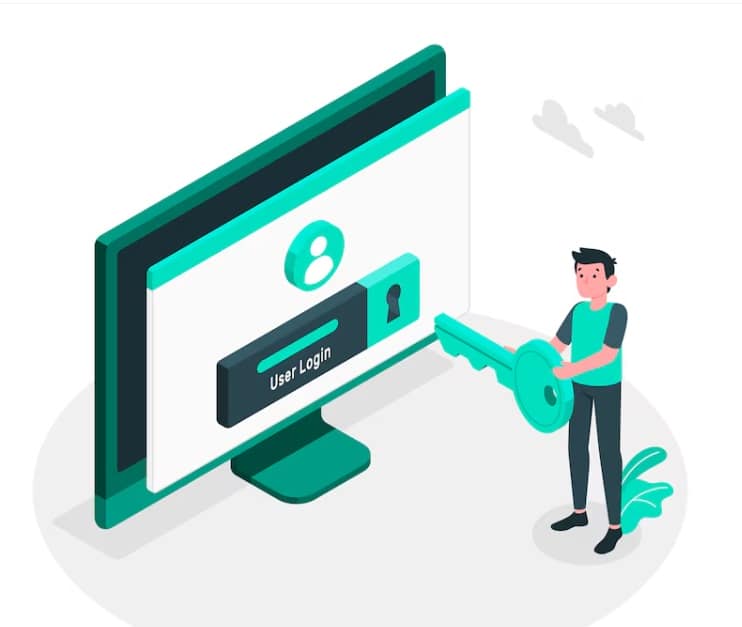
Your WordPress admin panel is the control center of your website, making it a prime target for hackers. If unauthorized users gain access, they can modify your content, install malicious scripts, or even take down your entire site.
This is why securing your WordPress admin login URL, using a strong WordPress password, and implementing security measures, are essential. A vulnerable login page can also lead to brute force attacks, data breaches, and other cybersecurity threats.
One of the best ways to enhance security is by using a WordPress security plugin that can limit failed login attempts, enable two-factor authentication, and block suspicious IP addresses. Additionally, keeping your wp admin folder protected and monitoring your WordPress database for unusual activity can help prevent unauthorized access.
By following proper WP admin login security practices, you can block access to hackers and ensure that your website remains safe, stable, and fully functional.
Keep Reading: Common WordPress Errors & How to Fix Them?
Need Help Logging in to WordPress Admin?
If you are locked out, facing login errors, or want your admin access secured properly, WordPress support can help you regain access fast and keep your site stable.
Simple Steps to Login into WordPress Admin Dashboard
Managing your WordPress site starts with accessing the admin dashboard. The login process is simple, but knowing the correct steps helps you avoid common errors and access issues. Follow the steps below to log in safely and without confusion.
Step 1: Open the WordPress Login Page

To access the WP admin, the first step is to navigate to the WordPress admin login URL. Most WordPress installations use a standard login URL that looks like this:
- yourwebsite.com/wp-admin
- yourwebsite.com/wp-login.php
You can enter this URL in your browser’s address bar to reach the login screen. However, some website owners prefer to change the WP-Admin URL for security reasons. If you’ve customized it, use the new URL instead of the default one.
Some hosting providers also offer direct access to the admin panel from their website section, eliminating the need to enter the login link manually.
Another method to find the login page is through the meta widget found in the site’s menu. This widget often contains a custom link leading to the login page.
Step 2: Enter Your Username and Password
Once you’ve reached the WordPress login screen, enter your WordPress username and WordPress password. These credentials were created during the WordPress installation and are required to access your admin panel.
If you’ve forgotten your login details, there are ways to recover them. Click on the “Lost your password?” link below the login button, which will allow you to reset your password via email. Alternatively, you can reset it manually through the WordPress database using phpMyAdmin.
For better security, always use a strong WordPress password that includes a mix of uppercase and lowercase letters, numbers, and symbols. You can also enhance security by using a WordPress security plugin to enable two-factor authentication.
If you experience multiple failed login attempts, your account may be temporarily locked. Some security settings may automatically block access after too many incorrect entries. In such cases, check your .htaccess file or security plugin settings to unlock your account.
Step 3: Click the “Log In” Button
After entering your credentials, click the login button to gain access to your WordPress admin panel. This will take you to the dashboard, where you can manage your website’s content, themes, and settings.
If login fails, check the following:
- Ensure you are using the correct site URL and login details.
- If you see a blank page or white screen, there may be a plugin conflict or an issue with the wp-admin folder.
- If your WordPress installation was recently modified, check whether a new plugin or update is causing login issues.
- Make sure your .htaccess file does not contain any incorrect rules that might be blocking the login page.
If you still can’t log in, contact your hosting support team for assistance. Some hosting providers allow you to reset login credentials through their website’s section, making it easier to regain access.
By following these steps, you can successfully log into your WordPress admin panel while ensuring your site’s security and preventing future login issues.
Check Out: Pros and cons of Automated WordPress Maintenance
Alternative Ways to Access WordPress Admin
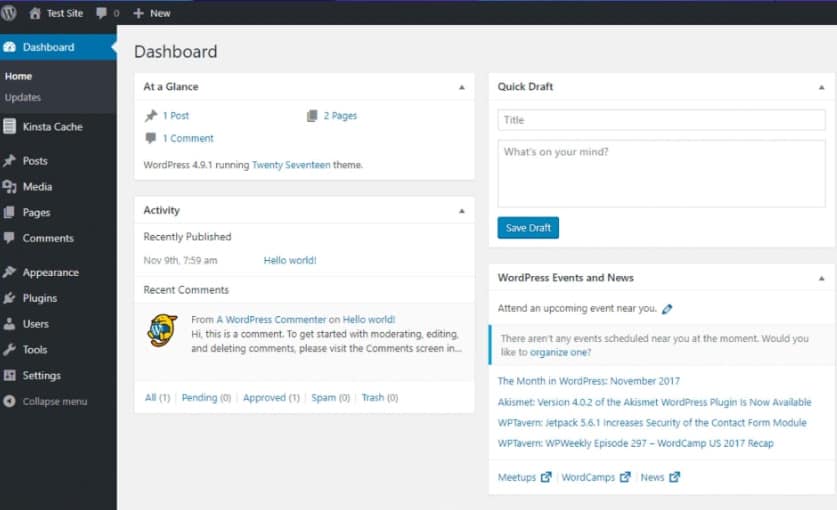
If you’re having trouble accessing your WordPress admin panel through the standard login methods, there are alternative ways to log in. These methods ensure you can still manage your site, even if you’ve lost access to the default WordPress login URL.
Logging in via Hosting Provider
Many hosting providers, such as DreamHost, Kinsta, and Hostinger, offer a direct way to access your WordPress admin panel without needing to enter your credentials manually. This is especially useful if you’ve forgotten your strong password or are experiencing login issues.
To log in via your hosting provider:
- Sign in to your hosting account.
- Navigate to the website section or WordPress installations.
- Select the site you need to manage.
- Click the Admin Login or Access WP Admin button.
This method bypasses the standard login methods and allows you to gain instant access to your installed WordPress dashboard.
Using WordPress Management Tools
If your hosting provider supports WordPress management tools like Softaculous, you can also log in through these platforms. Softaculous allows you to manage recently added websites, update plugins, and even reset your strong password if needed.
To use Softaculous for admin access:
- Log into your hosting control panel (cPanel or another dashboard).
- Find the Softaculous Apps Installer.
- Click on the WordPress installation you want to access.
- Select Admin Login to enter your dashboard without manually entering credentials.
This method is useful for those who manage multiple installed WordPress sites and need a quick way to switch between them.
Find Out: Benefits of White Label WordPress Development
Troubleshooting Common WordPress Login Issues
Login problems are common and usually caused by small configuration or security issues. These fixes help you regain access without resetting your site or losing data.
Forgotten WordPress Password
If you cannot remember your password, click the “Lost your password?” link on the WordPress login page. Enter your email address or username and follow the reset link sent to your inbox.
If the reset email does not arrive, you can change the password through phpMyAdmin. Open your hosting control panel, access phpMyAdmin, locate the wp_users table, and update the password field with a new secure value.
WordPress Login Redirect Loop
A redirect loop happens when login credentials are accepted but you are sent back to the login screen. This often relates to cookies or incorrect site URLs.
Clear your browser cache and cookies first. Then confirm that the WordPress site URL and home URL match your actual installation. If needed, correct these values through phpMyAdmin.
If the issue continues, disable plugins by renaming the wp-content/plugins folder. Regenerating the .htaccess file can also help stop repeated redirects.
Account Locked After Too Many Failed Login Attempts
Security plugins can temporarily block access after repeated failed login attempts. If your account is locked, wait for the lockout period or disable the security plugin using your hosting file manager.
You can also remove the lock manually via phpMyAdmin by locating the plugin’s settings in the wp_options table and clearing the restriction. After regaining access, review security rules to avoid future lockouts.
Learn More: Best Website Host for WordPress Site Speed Optimization
Enhancing WordPress Login Security
Securing your WordPress login is essential to protect your website from unauthorized access and potential threats. By implementing a few key measures, you can significantly enhance security and reduce the risk of login-related vulnerabilities.

Using Two-Factor Authentication (2FA)
One of the best ways to strengthen your WordPress login security is by enabling two-factor authentication (2FA). This extra layer of security requires users to enter a verification code sent to their mobile device or email, in addition to their username and password. Many WordPress security plugins offer built-in 2FA options, making it easy to enable this feature during the installation process.
Changing the Default Login URL
By default, most WordPress installations use /wp-admin or /wp-login.php as the admin login URL. Hackers often target these common login pages with brute-force attacks. Changing the login URL to a custom link can help prevent unauthorized access attempts.
You can modify the login URL by using a security plugin or manually updating your .htaccess file and functions.php file. When making changes, follow the correct command structure to avoid errors in your website’s functionality.
Limiting Login Attempts and Using Security Plugins
Another effective way to block unauthorized access is by limiting failed login attempts. Many security plugins allow you to set a maximum number of login attempts before temporarily blocking the IP address. Additionally, installing a security plugin helps monitor login activity, detect suspicious behavior, and provide firewall protection. Some plugins even include options to automatically ban IP addresses associated with failed login attempts.
Final Reading: Top WordPress Malware Removal Plugins
Conclusion
Logging in to your WordPress admin should be simple once you know where to look and what steps to follow. Whether you use the default login URL, reset a forgotten password, or access the dashboard through your hosting provider, each method helps you regain control of your site.
If login issues appear, they are usually easy to fix with basic checks like clearing cookies, disabling plugins, or reviewing security settings. By understanding the login process and applying simple security practices, you can access your WordPress admin with confidence and avoid future problems.
FAQs About Login to WordPress Admin
How do you log in to WordPress admin?
You log in by visiting your site’s login URL, usually yourdomain.com/wp-admin or yourdomain.com/wp-login.php. Enter your username and password to access the dashboard.
What should you do if you forget your WordPress login password?
Use the “Lost your password?” link on the login page. If the reset email does not arrive, you can change the password using phpMyAdmin through your hosting account.
Why can’t you access the WordPress admin dashboard?
Common reasons include incorrect login details, cookie issues, plugin conflicts, or security restrictions. Checking these areas usually helps restore access.
Can plugins block WordPress admin login?
Yes. Security and login-related plugins can block access after multiple failed attempts or due to misconfiguration. Disabling the plugin temporarily often resolves the issue.
Is it safe to log in to WordPress admin from public Wi-Fi?
Public networks increase security risk. If you must log in, use a secure connection and log out immediately after. A private network is always safer.