
Reliable malware removal plugins help you detect threats early, clean infected files, and prevent attacks before they harm your website. The right tools go beyond basic scanning by identifying hidden vulnerabilities, removing malicious code quickly, and strengthening your site against future risks.
WordPress websites are common targets for hackers due to outdated plugins, weak passwords, and insecure themes. Even a small vulnerability can lead to data loss, ranking drops, or downtime. This guide compares the most effective security tools and their use cases so you can choose the best option to keep your website safe and stable.
TL;DR:
- Malware cleanup plugins scan, detect, and clean infected files to protect your website.
- Wordfence is best for real-time protection and firewall security.
- Sucuri is ideal for advanced malware cleanup and website firewall protection.
- SolidWP works well for all-in-one security and monitoring.
- Jetpack Security is useful for backups, scanning, and basic protection.
- WPScan is best for vulnerability detection and security insights.
How Malware Removal Plugins Work?
Malware removal plugins protect your site by scanning your WordPress files, themes, plugins, and database for anything unusual. They look for known malware signatures, suspicious code, and changes hackers often leave behind.
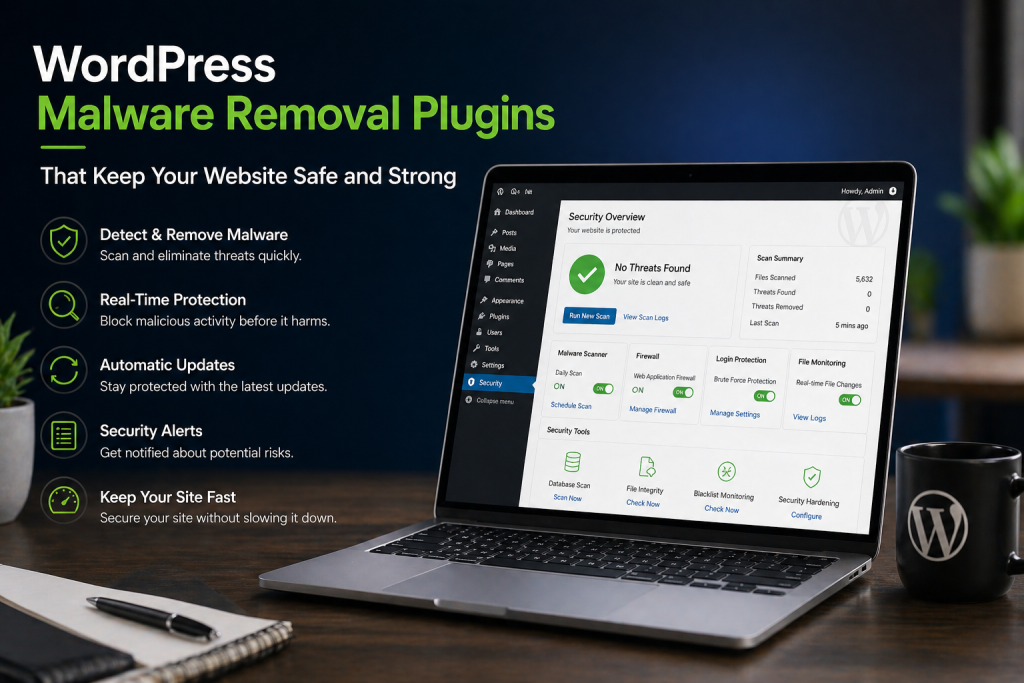
These tools run regular background checks and alert you when something looks off. Many also track login attempts, block brute-force attacks, and monitor file changes so you catch problems early.
Some plugins offer full cleanup features that remove infected files and restore safe versions. Others add extra protection, such as firewalls, activity logs, and two-factor authentication, to keep hackers out before damage occurs.
These plugins make security easier, giving you a simple way to find issues fast and keep your site safe.
How WPTasks Can Help Secure Your Website?
WPTasks helps you remove malware completely and prevent future infections with expert-led security and ongoing website care. Malware removal plugins can detect common threats, but they often miss deeply hidden code or recurring vulnerabilities that keep coming back.
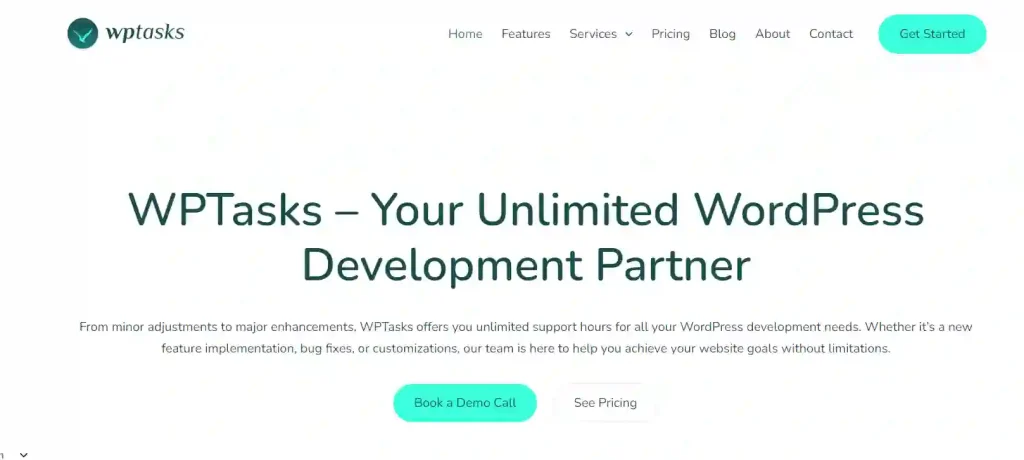
WPTasks goes beyond automated scans by identifying the root cause of infections, performing deep cleanup, and strengthening your website to stop future attacks. This ensures your site stays secure, stable, and protected over time.
WPTasks follows a subscription-based model. You get monthly development-hour retainers for technical fixes and improvements, along with a monthly maintenance subscription to keep your website updated and secure. With added hosting support and continuous monitoring, your site stays protected without repeated issues.
Is Your Website Hacked?
Get expert help to clean malware and secure your WordPress site quickly and safely.
What to Look for in a WordPress Malware Removal Plugin?
The right security plugin keeps your site safe, stable, and clean with as little effort as possible. Look for tools that protect your files, block attacks, and fix problems quickly.
- Real-Time Scanning: A strong plugin should scan your site often and spot malware the moment it appears.
- Automatic Cleanup: The tool should quickly remove infected files without you having to dig through code.
- Firewall Protection: A built-in firewall helps block attacks before they reach your website.
- File Change Monitoring: This alerts you when your files are edited, replaced, or tampered with.
- Brute-Force Protection: Good plugins limit login attempts and block suspicious IP addresses.
- One-Click Restore: You should be able to roll your website back to a safe version instantly.
- WooCommerce Support: If you run a store, choose a plugin that protects checkout pages, customer data, and order flows.
These features provide strong, reliable protection and help keep your WordPress site safe in 2026.
Best Malware Removal Plugins for WordPress
Malware can quickly compromise your website, affecting performance, SEO, and user trust. Choosing the right website malware scanners helps you detect threats early, clean infections, and prevent future attacks. Below are some of the most reliable options, each suited for different security needs.

SolidWP (formerly iThemes Security)
SolidWP is best for all-in-one website protection with strong monitoring and login security features.
SolidWP protects your website by scanning for malware, tracking file changes, and blocking suspicious login attempts. It includes features like two-factor authentication, brute-force protection, and database backups, making it a well-rounded security solution. The plugin continuously monitors your website for vulnerabilities and alerts you in real time, helping you act before threats escalate.
This makes SolidWP a strong choice for users who want a single plugin to manage multiple aspects of website security without relying on several tools.
Jetpack Security
Jetpack Security is best for users who want malware protection, backups, and site monitoring.
Jetpack Security offers daily malware scans, downtime alerts, and automatic backups to protect your website from data loss and attacks. It works directly within your WordPress dashboard, making it easy to manage without technical expertise. In addition to security, it includes spam protection and performance features, which add extra value.
This makes Jetpack a good option for beginners and small businesses that want a simple, all-in-one solution for security and website management.
WPScan
WPScan is best for detecting vulnerabilities and identifying security weaknesses before they are exploited.
WPScan uses a constantly updated database of known WordPress vulnerabilities to scan your site for risks in plugins, themes, and core files. It helps you identify outdated or insecure components that hackers often target. With regular updates and alert notifications, you can stay ahead of potential threats.
This makes WPScan ideal for users who want deeper visibility into vulnerabilities and prefer a proactive approach to website security.
Sucuri
Sucuri is best for advanced malware removal and firewall-based protection.
Sucuri offers powerful malware scanning, cleanup services, and a web application firewall that blocks attacks such as SQL injection and brute-force attempts. It also monitors your website for blacklist warnings and unauthorized file changes. In addition to security, its CDN improves website speed and performance.
This makes Sucuri a strong choice for websites that need advanced protection, fast recovery, and improved performance alongside security.
Wordfence
Wordfence is best for real-time threat detection and strong firewall protection.
Wordfence includes a powerful malware scanner and firewall that protects your website from malicious traffic and attacks. It uses real-time threat intelligence to detect new vulnerabilities and block harmful activity instantly. Features like login security, file repair, and detailed scan reports help maintain a secure website environment.
This makes Wordfence one of the most reliable choices for users who need continuous protection and real-time monitoring.
How to Use a Malware Scanner Plugin in WordPress?
You can secure your website by installing a malware scanner plugin, running regular scans, and cleaning threats as soon as they appear.
Malware scanner plugins help you detect infected files, monitor suspicious activity, and protect your website from security threats. Once set up correctly, they run in the background and alert you before damage spreads.
Step 1: Install and Set Up a Malware Scanner Plugin
Start by installing a trusted malware scanner plugin from your WordPress dashboard. Search for a reliable tool, install it, and activate it in a few clicks. If needed, you can also upload the plugin manually using FTP. After installation, configure the plugin settings based on your needs. Set up automatic scans, enable alerts, and adjust security settings to keep your website regularly monitored with minimal effort.
Step 2: Run a Malware Scan and Review Results
Once your plugin is active, run a full website scan. Most plugins allow you to start a scan instantly or schedule automatic checks. These scans analyze your files, themes, plugins, and database for malicious code or vulnerabilities.
After the scan, review the report carefully. Look for flagged files, unusual changes, or known malware signatures. Good plugins also provide recommendations, helping you understand what needs fixing and how serious the issue is.
Step 3: Remove Malware and Restore Your Website
If malware is detected, use the plugin’s built-in tools to clean infected files or quarantine them. Many plugins can automatically remove common threats, while others may require manual approval for safety. If your website is heavily affected, restoring a clean backup is often the fastest solution. This helps you recover your core files, themes, plugins, and database without risking further damage.
Conclusion
Regular malware removal is crucial for keeping your WordPress site secure by preventing data breaches, protecting sensitive user information, and ensuring smooth operation. When selecting a plugin, consider factors like features, pricing, compatibility, and customer support.
Popular plugins offer malware scanning, cleanup, and additional security features such as firewall protection and brute-force prevention. However, WordPress malware services might be the best option for continuous, expert protection and real-time monitoring.
Frequently Asked Questions
How do I know if my WordPress site has malware?
Common signs include strange popups, redirects, slow loading, unknown admin accounts, file changes, and warnings from Google or your hosting provider.
What is the safest way to remove malware from a WordPress site?
Use a trusted malware scanner plugin to clean infected files, then restore a clean backup if the damage is extensive. Avoid deleting files manually unless you know what you’re doing.
Can malware come from plugins or themes?
Yes. Outdated plugins, nulled themes, and poorly coded tools are common entry points for malware. Keeping everything updated reduces the risk.
Do I need a firewall if I already use a malware scanner?
Yes. A scanner finds infections, while a firewall blocks attacks before they reach your site. Using both gives you stronger protection.
How often should I scan my WordPress site for malware?
Daily scans are ideal for active websites. At a minimum, schedule weekly scans and always run a scan after installing or updating plugins.
Will removing malware break my WordPress site?
Not if handled correctly. Good security plugins remove infected code safely. If important files are affected, restoring from a backup brings everything back to normal.