

When you log into your WordPress website, the first thing you see is the WordPress admin dashboard, your command center for managing content, settings, users, and more. But let’s face it, the default WordPress dashboard isn’t exactly tailored to your needs. It’s often filled with unnecessary widgets, a generic dashboard menu, and the same old WordPress logo.
In this post, we’ll show you the top 5 ways to enhance your WordPress admin area, from using powerful dashboard plugins to adding custom CSS and improving the admin interface. These tips will help you streamline workflows, boost usability, and take full control of your admin panel.
Why WordPress Dashboard Customization Matters
Whether you’re managing a personal blog, a client project, or a large team, a custom WordPress dashboard can significantly improve the way you interact with your website’s backend.

- Improves User Experience and Navigation: Customizing the WordPress admin interface helps simplify navigation by reorganizing the WordPress dashboard menu and tailoring menu items to specific users. You can use admin themes, adjust admin columns, and even apply a custom admin color scheme to make the dashboard more intuitive and visually appealing.
- Helps Clients and Teams Stay Focused: By hiding irrelevant default widgets and displaying only essential tools, you help users focus on what really matters. You can remove unnecessary widgets, create custom widgets, and design a custom welcome panel that includes quick links, instructions, or updates, ideal for clients or teams with limited technical knowledge.
- Enhances Branding for Agencies and Freelancers: Replace the default WordPress logo, style the login page, and customize the admin bar using custom CSS or plugins. This allows agencies and freelancers to deliver a fully white-labeled experience, making the WordPress admin page reflect your brand identity.
- Boosts Productivity by Reducing Clutter: A clutter-free dashboard means faster access to the tools you use most. Reorganize your dashboard layout, display only relevant SEO tools, hide WordPress news, and optimize the view using screen options. You can even use a few lines of code snippets or a plugin like Ultimate Dashboard to control visibility and layout.
- Adds a Layer of Security and Control: Customizing the dashboard also helps enhance site security. With tools that let you customize user roles and manage user capabilities, you can control who sees what on the WordPress admin page.
Discover: How to Start a WordPress Blog
Need Help Customizing Your WordPress Dashboard in the Best Way Possible?
Let the experts at WPTasks streamline your admin panel, create custom widgets, and optimize your site’s backend for better control and usability.
Who Should Customize the WordPress Dashboard?
Not every WordPress site needs a complete admin overhaul, but for many, it can make a huge difference. Here are the types of users who benefit most from a custom WordPress dashboard:

- Agencies Managing Multiple Client Sites: If you’re an agency handling several client projects, customizing the WordPress admin panel helps streamline onboarding, improve communication, and deliver a branded experience. You can remove unnecessary widgets, tweak the dashboard layout, and use admin themes to maintain consistency across all your projects.
- Freelancers Building White-Labeled Solutions: Freelancers can impress clients by replacing the default WordPress logo, styling the login page, and creating a unique admin interface. Using tools to create custom widgets or add a welcome panel helps keep things clear, functional, and professional.
- eCommerce Store Owners: Are you running a WooCommerce store? Customizing the WordPress dashboard menu ensures your store manager sees only what they need, like orders, inventory, and analytics, while hiding less relevant items like WordPress news or plugin settings. This improves speed and usability for daily tasks.
- Bloggers and Content Creators: If content is your focus, a personalized admin dashboard can streamline publishing. You can display your editorial calendar using dashboard plugins, highlight SEO checklists, or show recent drafts in a custom widget. A clean dashboard layout helps you stay organized and productive.
- Teams Managing Role-Based Workflows: For teams with multiple roles, like editors, authors, and developers, it’s important to customize user roles and manage user capabilities. You can control access to the WordPress admin bar, set login redirects, and show different menu items or admin columns based on the user’s job.
Top 5 WordPress Dashboard Customizations for Enhanced Control
Below are five powerful ways to transform the default WordPress dashboard into a smarter, cleaner, and more personalized workspace.
Custom Admin Menu Structures
The WordPress dashboard menu can quickly become cluttered with unnecessary menu items, especially as you install more plugins. By customizing the admin menu, you can simplify navigation and show only the tools specific to each user’s role.
Benefits:
- Cleaner navigation and less overwhelm
- Role-specific access to features
- Improved usability and productivity
Personalized Dashboard Widgets
The WordPress admin page comes with several default widgets like WordPress News and Quick Drafts, which may not be useful to all users. Instead, you can remove unnecessary widgets and add custom widgets with helpful content tailored to your team or clients.
Benefits:
- Highlights only relevant info
- Adds useful resources directly to the dashboard
- Keeps clients updated without clutter
You can use a code snippet or plugin to create widgets that match your brand style using a custom admin color scheme or custom CSS.
White Labeling the Dashboard
If you’re an agency or freelancer, delivering a custom WordPress dashboard with your branding, not WordPress’s, is a simple way to impress clients and provide a seamless brand experience.
Benefits:
- Removes the default WordPress logo
- Reinforces brand trust and professionalism
- Makes the dashboard less confusing for non-tech users
User Role and Permission Control
Not every user needs access to everything on your WordPress admin interface. Proper user role management ensures users only see what they need, enhancing security and clarity.
Benefits:
- Prevents users from accessing critical settings
- Supports role-based workflows
- Enhances security and user experience
Pair role control with admin columns to show different table data based on role, like product IDs for managers and post statuses for editors.
Custom Login and Admin Page Designs
The login screen is often overlooked, but it’s a key touchpoint in the user experience. By styling the login page and admin area, you offer a fully branded, consistent, and even more secure interface.
Benefits:
- Makes your WordPress admin page look unique
- Creates a more immersive brand experience
- Enhances security by hiding standard WordPress branding
Styling the login page can act as a basic deterrent to bots and attackers who look for standard WordPress login pages.
Explore: DIY vs Professional WordPress Support
Admin Notifications and In-Dashboard Alerts
The WordPress admin dashboard is more than just a control panel. It can also serve as a communication hub.
By adding admin notifications and in-dashboard alerts, you ensure that users never miss important updates, reminders, or site-specific tasks. These notices can appear at the top of the admin area, inside dashboard widgets, or even in the admin bar.
For example, you can create custom admin notices with a few lines of code or by using plugins such as WP Adminify or UiPress.
They can remind editors to review drafts, notify customers of new features, or highlight performance issues that need attention. With custom CSS and design tweaks, these messages can match your site’s branding and color schemes, offering a more professional dashboard experience.
Benefits:
- Keeps clients and team members informed without email clutter
- Adds targeted reminders based on roles or account types
- Improves workflow by surfacing critical actions in the right admin area
Speed and Performance Enhancements
As your site grows and you install more plugins, the WordPress admin area can start to feel slow.
Performance optimization is a crucial customization step that enhances speed, usability, and productivity. A sluggish dashboard wastes time for contributors and can frustrate clients.
Plugins like WP Adminify and Ultimate Dashboard offer built-in tools to reduce bloat, disable unnecessary scripts, and streamline the menu.
You can also use custom CSS or filters to hide unused dashboard elements, adjust admin columns, and lighten the server’s load. For advanced users, disabling the heartbeat API or limiting autosave frequency improves performance significantly.
Benefits:
- Speeds up navigation between dashboard pages and menu items
- Reduces conflicts with plugins and large media libraries
- Provides a smoother, more professional client dashboard experience
Best Plugins for WordPress Dashboard Customization
Below is a detailed list of the top tools to take full control of your WordPress admin interface.
Admin Menu Editor
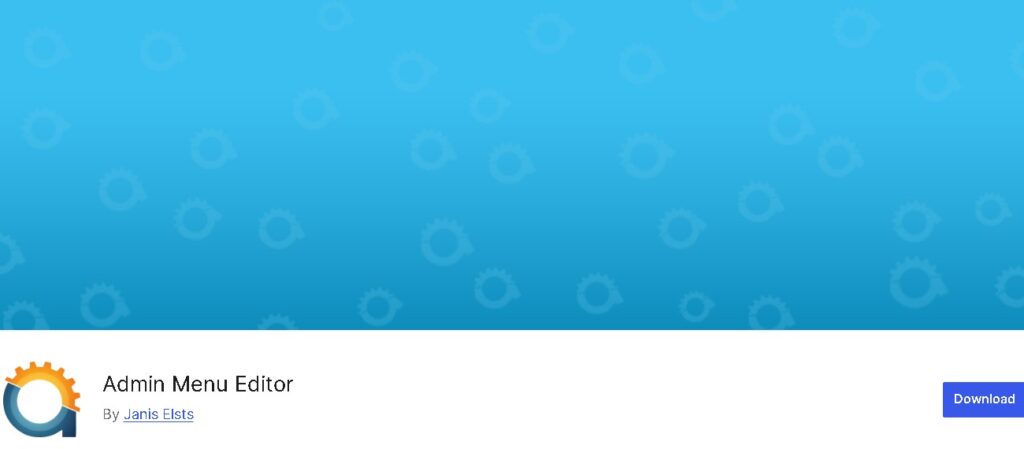
Admin Menu Editor is a powerful plugin that gives you full control over your WordPress dashboard menu. You can rearrange, rename, hide, or add new menu items, making it easy to create a clean and focused interface for different user roles.
Key Features:
- Drag-and-drop menu editor
- Set visibility based on user roles or capabilities
- Change icons, titles, and URLs of existing menu items
- Create new top-level or submenu items
WP Adminify
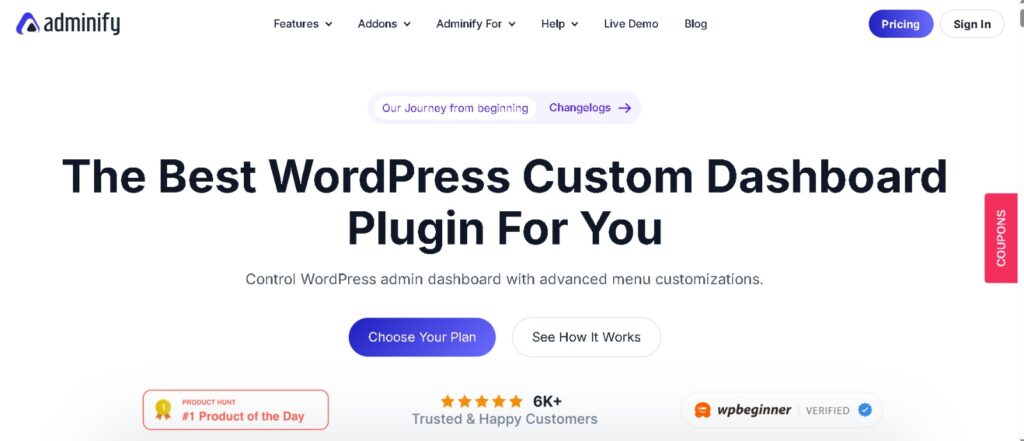
WP Adminify is an all-in-one admin panel customization plugin that helps you redesign your entire WordPress dashboard layout. It comes with advanced features like Google PageSpeed Insights, custom folders for media, and dark mode.
Key Features:
- Custom dashboard UI
- Built-in speed optimizer and analytics
- Menu manager, folder management, and more
- Compatible with Ultimate Dashboard widgets
WP Dashboard Notes
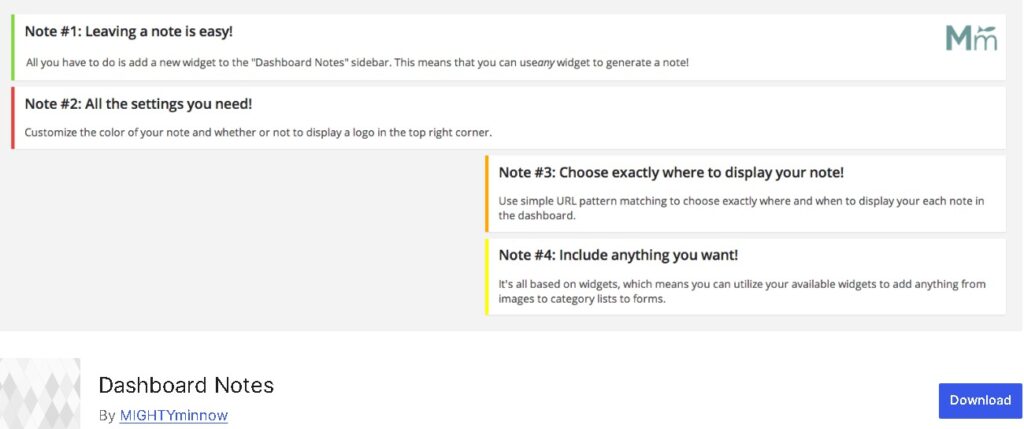
This WP Dashboard Notes plugin lets you add colored notes to your WordPress admin area, great for internal communication or personal reminders.
Key Features:
- Add unlimited sticky-style notes
- Public and private note options
- Color customization
Custom Dashboard Widgets
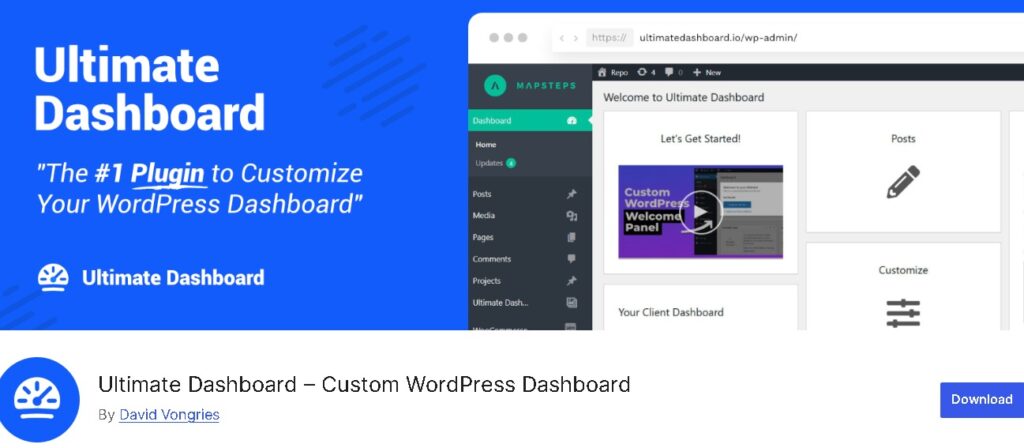
With the Custom Dashboard Widgets, you can create custom widgets in your WordPress admin page using text, images, or HTML. It’s ideal for personalizing the dashboard for clients or team members.
Key Features:
- Add custom content (HTML, text, media)
- Control visibility by user role
- Supports custom branding and styling via custom CSS
White Label CMS
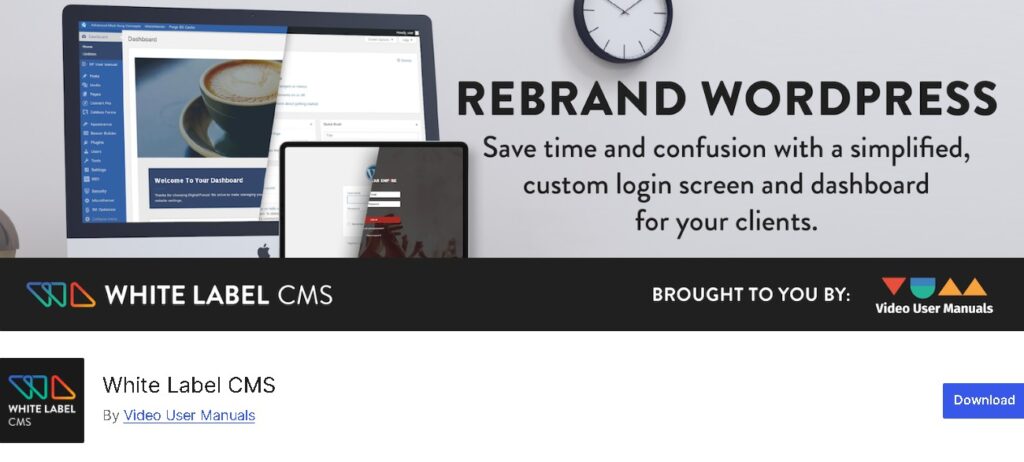
White Label CMS is a popular plugin for rebranding the WordPress admin interface. It allows you to remove the default WordPress logo, hide WordPress News, and completely revamp the login screen and welcome panel.
Key Features:
- Replace WordPress logos and branding
- Hide default widgets and screen options
- Add custom welcome messages and panels
- Customize login page styling
Explore: How to Access WordPress Admin with a Critical Error Warning
Conclusion
Customizing your WordPress admin dashboard is essential because the default setup often doesn’t fit the specific needs of every user or website. Whether you’re managing an agency with multiple clients, running an eCommerce store, or simply want a cleaner and more productive workspace, tailoring the WordPress admin panel helps you work smarter.
By investing time in the right dashboard plugins and configurations, you can significantly improve your website’s backend efficiency and user satisfaction.
FAQs About WordPress Dashboard Customization
How can I customize my WordPress admin dashboard without coding?
You can use plugins like WP Adminify, Admin Menu Editor, or Ultimate Dashboard. These offer drag-and-drop functionality, dashboard widgets, and menu management without needing to add custom CSS or code.
What is the easiest way to change the WordPress login screen?
A login customizer plugin lets you update the background, logo, and color schemes of your WordPress login screen. You can also add a custom login URL for extra security.
Can I create role-specific dashboards for clients or teams?
Yes. With plugins such as UiPress or Admin Menu Editor, you can show different menu items, widgets, or dashboard elements based on user roles. This ensures clients or customers only see what matters to them.
Will customizing the admin dashboard affect my site’s performance?
Not if done correctly. In fact, removing unused items and widgets often improves performance. For large installations, use lightweight plugins and disable unnecessary scripts to avoid performance issues.
How do I add custom CSS to my admin area?
You can add custom CSS directly through your theme’s functions.php file or by using plugins that support admin customization. This allows you to tweak dashboard appearance, admin bar styles, and even page content presentation.